
Choosing between WebP vs PNG vs JPG comes down to three questions: what is in the image, whether you need transparency, and where the file is going. Pick the wrong format and you end up with a photo that is far heavier than it needs to be, or a logo with fuzzy edges and a white box around it. This guide explains how each format works, which one to use for common jobs, and how to convert files without losing quality you cannot get back.
WebP vs PNG vs JPG at a glance
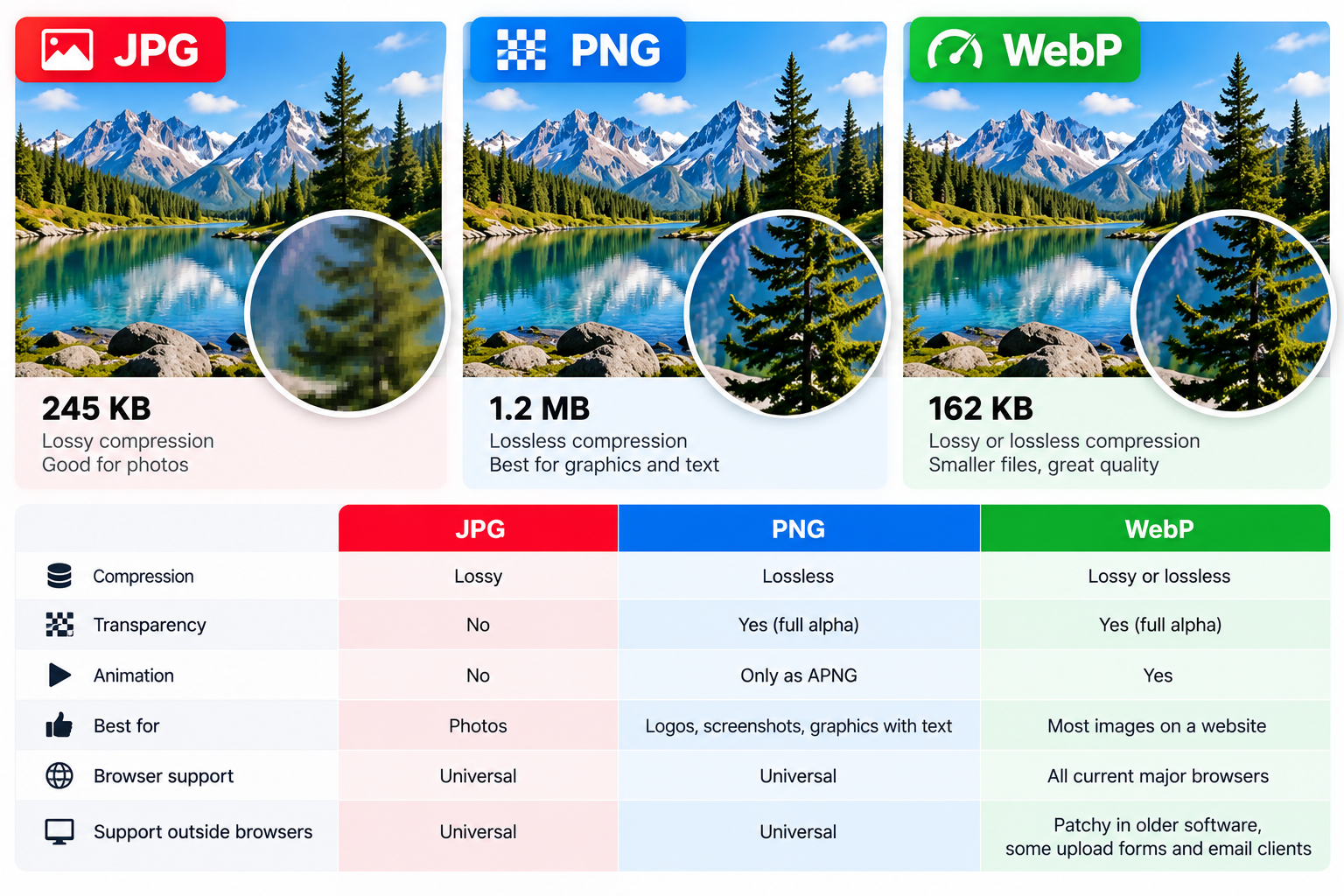
The short version fits in a table. The sections below explain the reasoning behind each row.
Feature | JPG | PNG | WebP |
|---|---|---|---|
Compression | Lossy | Lossless | Lossy or lossless |
Transparency | No | Yes (full alpha) | Yes (full alpha) |
Animation | No | Only as APNG | Yes |
Best for | Photos | Logos, screenshots, graphics with text | Most images on a website |
Browser support | Universal | Universal | All current major browsers |
Support outside browsers | Universal | Universal | Patchy in older software, some upload forms and email clients |
How each format works
JPG: small photos, at a cost
JPG (also written JPEG) uses lossy compression. It throws away detail that the eye is less likely to notice, mainly fine colour variation, and stores the rest efficiently. Most editors let you pick a quality level from 0 to 100. Around 75 to 85 is usually hard to tell apart from the original for a typical photo, while the file is a fraction of the size.
The weaknesses show up around sharp edges. Text, line art and flat blocks of colour pick up blotchy artefacts and faint halos. JPG also has no transparency, so anything that should be see-through becomes a solid colour.
One more catch: every time you open a JPG, edit it and save it again as JPG, it is compressed again and loses a little more. Keep your original file and export a fresh copy each time rather than editing the export.
PNG: every pixel kept
PNG is lossless. What you save is exactly what you get back, pixel for pixel. That makes it the right choice for screenshots, interface mockups, diagrams, logos and anything with crisp text.
PNG also supports a full alpha channel, so pixels can be partly transparent. That is what gives a logo smooth, anti-aliased edges on any background, or lets a product cut-out carry a soft shadow.
The downside is size with photographs. Because PNG cannot discard detail, a photo saved as PNG is often several times larger than a good JPG of the same picture. You can check this yourself by exporting one photo in both formats and comparing the file sizes.
WebP: one format, two modes
WebP was developed by Google and released in 2010. It has a lossy mode that competes with JPG and a lossless mode that competes with PNG, and both modes support transparency. It can also hold animation, which makes it a lighter replacement for many GIFs.
Google's own published comparisons put lossless WebP at roughly 26% smaller than PNG and lossy WebP at roughly 25 to 34% smaller than JPG at comparable quality. Treat those as a guide, not a promise. The saving depends on the image, so convert a few of your own files and compare.
Every current major browser displays WebP, including Chrome, Edge, Firefox and Safari from version 14 onwards. The weak spot is everything outside the browser. Older image editors, some content management systems, email clients, print shops and official upload portals may refuse WebP or handle it badly.
Which format to use for common jobs
Photos on your own website: WebP, with a JPG fallback if you need to support very old browsers. Plain JPG at quality 75 to 85 is still a sensible choice if your platform makes WebP awkward.
Logos and icons on a website: SVG if you have a vector version. Otherwise PNG or lossless WebP, both of which keep transparency and sharp edges.
Screenshots and tutorials: PNG or lossless WebP. JPG blurs small text and adds artefacts around interface edges.
Product photos on a transparent background: PNG or WebP. JPG cannot store the transparency.
Email attachments and documents for other people: JPG for photos, PNG for graphics. Both open everywhere without the recipient needing to think about it.
Files for print: ask the printer. Many want high-resolution JPG, PNG, TIFF or PDF, and few ask for WebP.
Social media uploads: a high-quality JPG or PNG is the safe choice. Platforms generally process and re-compress what you upload, so a heavily compressed file gets compressed twice.
Favicons: a different job with its own sizes and formats. The Favicon & App Icon Studio produces the full set for you.
How to convert between formats
Converting is quick. The care goes into choosing the right source file and checking the result. Using the Image Converter, which handles JPG, PNG, WebP and several other formats:
Keep a copy of your original file. Always convert from the highest quality version you have, not from an earlier export.
Open the Image Converter and add your image.
Choose the output format, for example WebP for a website photo or PNG for a screenshot that someone needs to edit.
Convert and download the new file.
Open the result at 100% zoom and compare it with the original, then compare the two file sizes.
If your main goal is a smaller file rather than a different format, the Image Compressor & Converter shrinks images and can switch between PNG, JPG and WebP in the same pass. That is handy when you are preparing a batch of photos for a web page.
What changes when you convert
Transparent PNG or WebP to JPG: the transparent areas become a solid colour, usually white or black. Check the edges of logos and cut-outs after converting.
JPG to PNG: this does not bring back lost detail. You get the same artefacts in a larger file. Only do it if a tool or person specifically needs PNG.
JPG to lossy WebP: the image goes through a second round of lossy compression. Starting from the original camera file or a high-quality export gives a cleaner result than starting from an already compressed JPG.
Animated WebP or GIF to JPG or PNG: standard JPG and PNG hold a single frame, so the animation is lost.
Metadata: photos often carry EXIF data such as camera details and GPS location. Do not rely on conversion to remove it. Check and strip it with the EXIF Viewer & Remover before publishing.
Serving WebP with a fallback
If you want WebP on your site but still need something for older browsers or tools that read your pages, the HTML picture element lets the browser choose. Browsers that understand WebP use the first source. Everything else falls back to the JPG in the img tag.
<picture>
  <source srcset="/images/shop-front.webp" type="image/webp">
  <img src="/images/shop-front.jpg" alt="Shop front at night" width="1200" height="800">
</picture>
Keep the width and height attributes on the img tag. They let the browser reserve space before the image loads, which stops the page jumping around. The alt text belongs on the img tag too, not on the source.
Many content management systems and image plugins can generate WebP versions and this markup for you. Check what yours does before converting hundreds of files by hand.
Format matters less than pixel size
A common mistake is to agonise over format while uploading a photo straight from a phone camera. A 4000 x 3000 pixel image displayed in a 1200 pixel wide column carries more than ten times the pixels the page actually needs. No format choice makes up for that.
Resize first, then pick the format. The Image Resizer lets you set exact dimensions. A useful rule is to make the image about twice the width it will be displayed at, so it stays sharp on high-density screens, and no larger.
Checking the result yourself
Numbers from comparisons are a starting point. Your own images are what count, so check them directly:
Compare file sizes in your file manager or the file properties window.
View both versions at 100% zoom and look at the hard parts: text, fine edges, skies and smooth gradients, where banding shows up first.
On a live page, open your browser's developer tools, go to the Network tab, filter by images and reload. The size column shows what each image actually costs your visitors.
If the smaller file looks the same to you at normal viewing size, use it. If you can see blocky patches or colour banding, step the quality up a little and try again.
Summary
Use JPG for photos that need to open anywhere, at quality 75 to 85.
Use PNG for screenshots, logos, text and anything needing transparency, especially when the file leaves your website.
Use WebP for images on your own site, where it is usually the smallest option for both photos and graphics.
Resize to the right dimensions before choosing a format, always convert from your best original, and check the result at 100% zoom before publishing.