
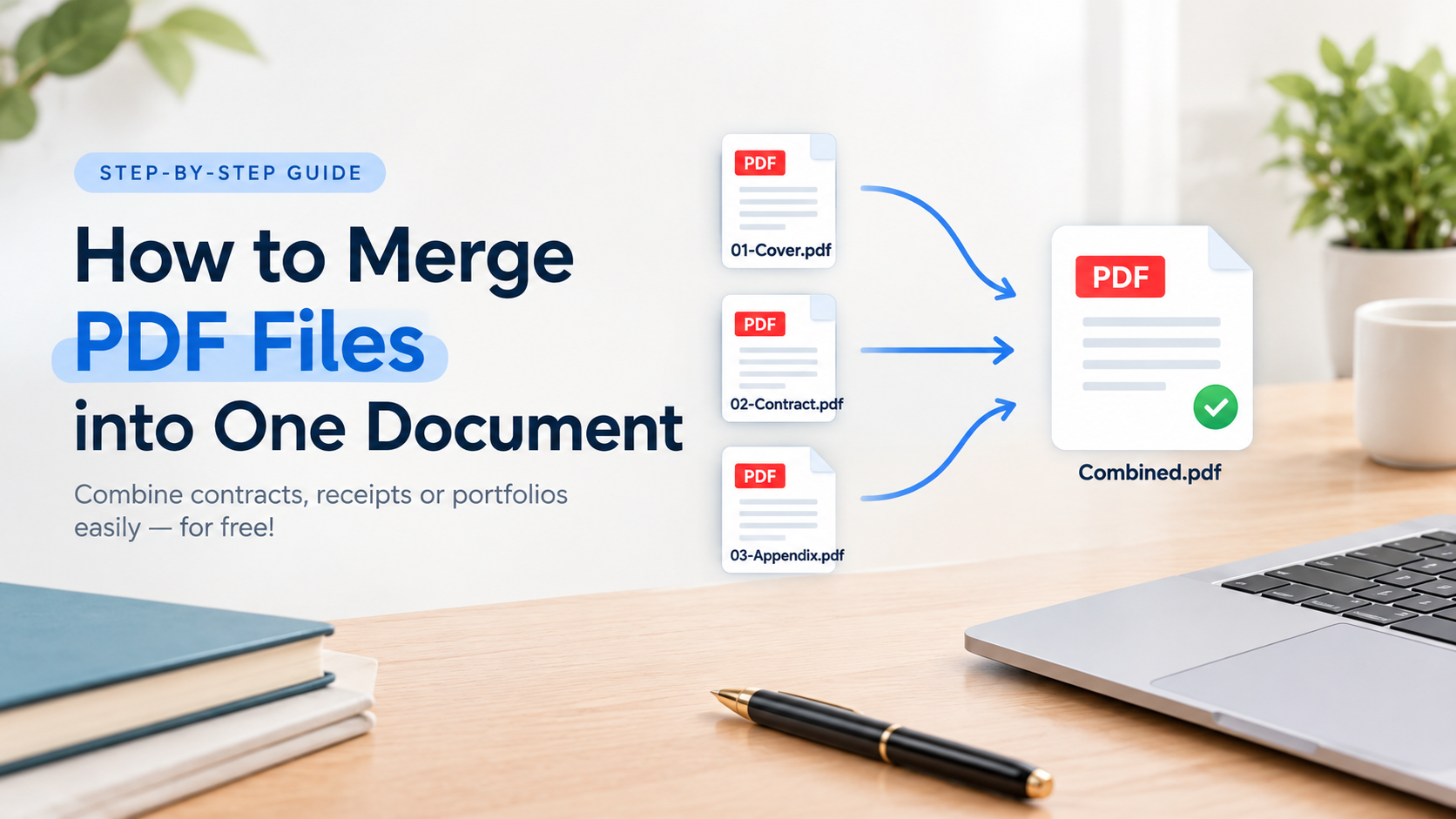
When you need to send a contract with its appendices, a batch of scanned receipts or a portfolio as one attachment, it is much easier to merge PDF files into a single document first. This guide shows you how to do it for free, how to get the pages in the right order, and how to handle the problems that tend to appear: locked files, oversized results and sideways pages.
Why combine PDFs at all
One file is simpler for the person receiving it. They open one attachment, read it in the order you intended and print it in one go. Many upload forms, such as job applications, visa portals and tender systems, also accept only one document per field, so a CV, cover letter and certificates often have to go in together.
It helps you too. A single PDF is easier to archive, name and find later than a folder of loose files called scan001.pdf to scan010.pdf.
Prepare your files before merging
Five minutes of preparation saves you from merging twice.
Convert everything to PDF first. Merge tools work with PDFs, so turn other formats into PDFs beforehand. Use Word to PDF for .docx files and Image to PDF for photos, screenshots and scanned JPGs.
Remove passwords you know. If a file asks for a password when you open it, most merge tools cannot read its pages. If it is your file or you have the password, take it off with Unlock PDF, then merge.
Name files in the order you want. Computers sort names as text, so report-1, report-10 and report-2 appear in that order. Prefix files with two digits instead: 01-cover.pdf, 02-contract.pdf, 03-appendix.pdf. When you select them all, they usually load in the right sequence.
Drop pages you don't need. Blank scan pages, duplicate cover sheets and old terms pages make the final file longer and larger. Delete them with Remove PDF Pages, or pull out only the pages you want using the approach in our guide to splitting PDFs.
How to merge PDF files online, step by step
An online tool is the quickest option on any computer, including Windows machines and Chromebooks where you may not be allowed to install software.
Open Merge PDF in your browser.
Add the PDFs you want to combine. In the file picker, hold Ctrl on Windows or Cmd on a Mac to select several files at once.
Check the order of the files. The first file in the list becomes the first pages of the new document, the second file follows it, and so on.
Run the merge and download the combined PDF.
Open the result and check it before you send it anywhere.
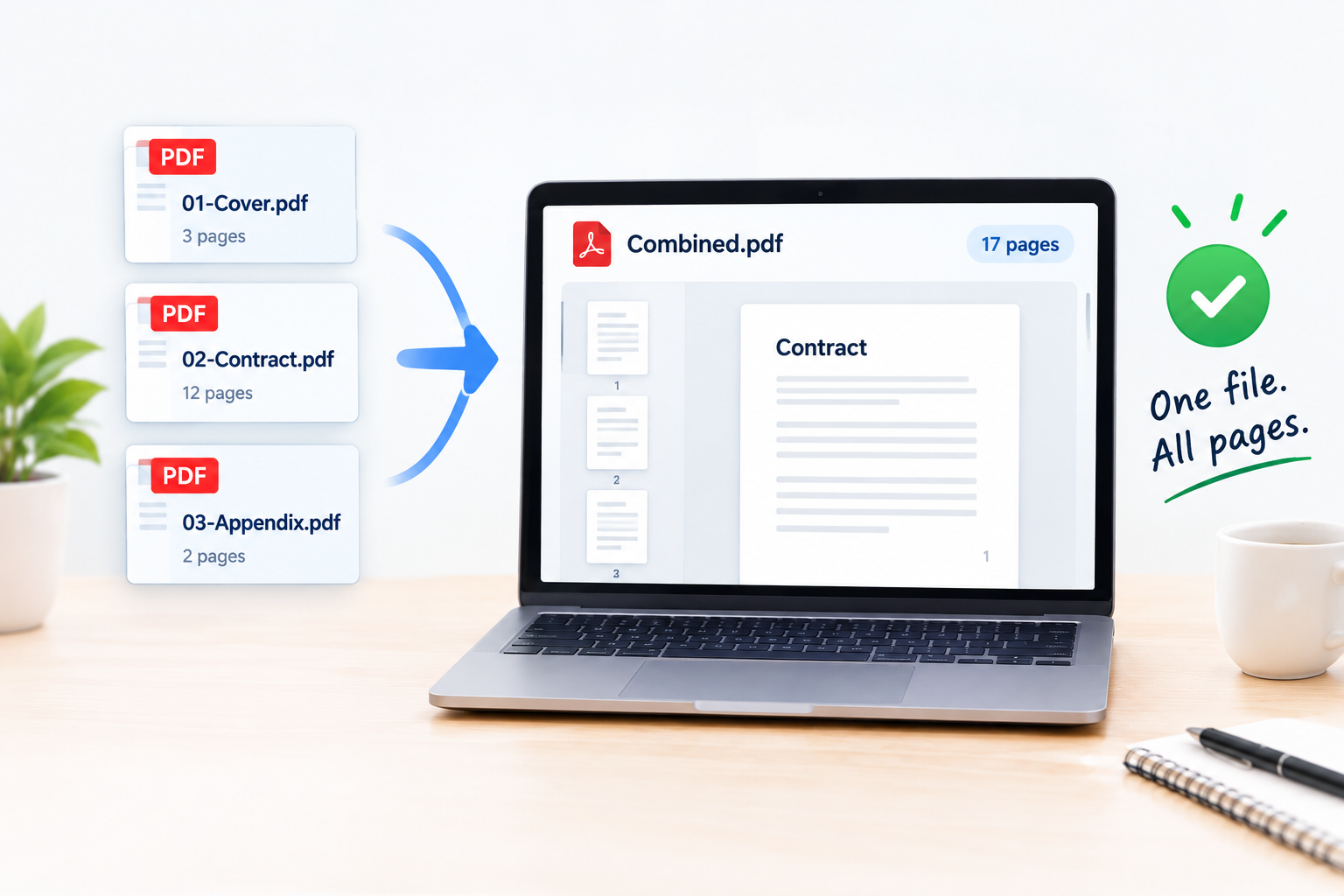
The check in step 5 matters more than people think. A quick test is the page count: add up the pages of each original file (your PDF viewer shows this) and compare it with the total in the merged file. If you combined a 3-page cover letter, a 12-page contract and a 2-page appendix, the result should have 17 pages. Then scroll through and confirm the first and last page of each section are where you expect them.
Fixing page order after the merge
Merging joins whole files end to end. It does not move individual pages around. If you need to, say, move a signature page from the middle of the contract to the very end, or delete a duplicate page that slipped through, open the merged file in Organize PDF. It lets you reorder, rotate and delete pages, so you can tidy the document without starting again.
Other free ways to combine PDFs
You don't always need a website. Here are the main alternatives and when they make sense.
Preview on a Mac
macOS includes Preview, which can join PDFs without any extra software.
Open the first PDF in Preview.
Choose View, then Thumbnails, to show the page sidebar.
Drag the second PDF from Finder into the sidebar and drop it where you want its pages to go.
Repeat for any other files.
Choose File, then Export as PDF, to save a new combined file. A plain Save changes your original first file, which you may not want.
Windows
Windows does not include a tool for joining PDFs. The built-in Microsoft Print to PDF printer creates one PDF from one document at a time, so it cannot combine existing files. An online tool or a free desktop PDF program is the practical route.
The command line
Developers who merge files regularly, or need to do it in a script, can use free open-source tools. With qpdf installed:
qpdf --empty --pages 01-cover.pdf 02-contract.pdf 03-appendix.pdf -- combined.pdfOn Linux, the pdfunite command from the Poppler utilities is even shorter. The last file name is always the output:
pdfunite 01-cover.pdf 02-contract.pdf 03-appendix.pdf combined.pdfBe careful with pdfunite: if you forget the output name, it treats your last input file as the output and overwrites it. Keep a backup of the originals.
Comparing the options
Method | Best for | Watch out for |
|---|---|---|
Online tool | Quick one-off jobs on any device | Check the service's privacy information for sensitive files |
Mac Preview | Mac users merging a few files offline | Save overwrites the original; use Export as PDF |
qpdf or pdfunite | Repeated jobs, scripts and batches | Needs installing; easy to overwrite a file by mistake |
Common problems and how to fix them
The merged file is too large to email or upload
Combining files adds their sizes together, so five 6 MB scans give you a file of roughly 30 MB. Many email services cap attachments somewhere around 20 to 25 MB, and upload portals often set lower limits, so check the exact figure stated by your provider or the form. High-resolution scans and photos are usually the cause. Run the merged file through Compress PDF and compare the size before and after. If text looks fuzzy afterwards, try a lighter compression setting.
Some pages are sideways or upside down
This happens a lot with phone scans and landscape spreadsheets. Fix them in Organize PDF while you are reordering, or use Rotate PDF if you just need to turn all pages, or a chosen set, by 90 or 180 degrees.
Pages are different sizes
Merging keeps each page at its original size, so an A4 contract combined with a US Letter appendix will contain both sizes. On screen this rarely matters. When printing, choose your printer's fit-to-page option so nothing gets cut off at the edges.
One of the files won't load
If a file isn't password protected but still fails, it may be damaged, often from an interrupted download or a faulty export. Try opening it in a different PDF viewer. If it won't open there either, Repair PDF can attempt to recover it, after which you can merge as normal.
Bookmarks, links or form fields behave oddly
Different merge methods handle these extras differently. Bookmarks from the original files may not carry over, and fillable forms can lose their values or clash if two files use the same field names. If you are combining forms, fill them in before you merge, then check every field in the result.
Readers get lost in a long document
Once ten files become one 60-page PDF, the original page numbers no longer match. Use Add Page Numbers on the merged file so references like "see page 34" make sense to whoever reads it.
A note on privacy
Merged documents often contain exactly the kind of information you want to protect: ID scans, bank statements, signed contracts. Before uploading sensitive files to any online service, read its privacy information. If some details shouldn't be shared with the final recipient at all, such as account numbers on a statement, black them out with Redact PDF before you send the combined file. For highly confidential material, the offline methods above keep everything on your own computer.
Quick summary
Convert everything to PDF, remove known passwords and name files with 01, 02, 03 prefixes.
Merge the files, then check the page count and the start of each section.
Use Organize PDF to move, rotate or delete individual pages after merging.
Compress the result if it is too large for email or an upload form.
Add page numbers to long documents and redact anything the recipient shouldn't see.
Follow those steps and you will end up with one tidy, correctly ordered PDF that opens first time for whoever receives it.