
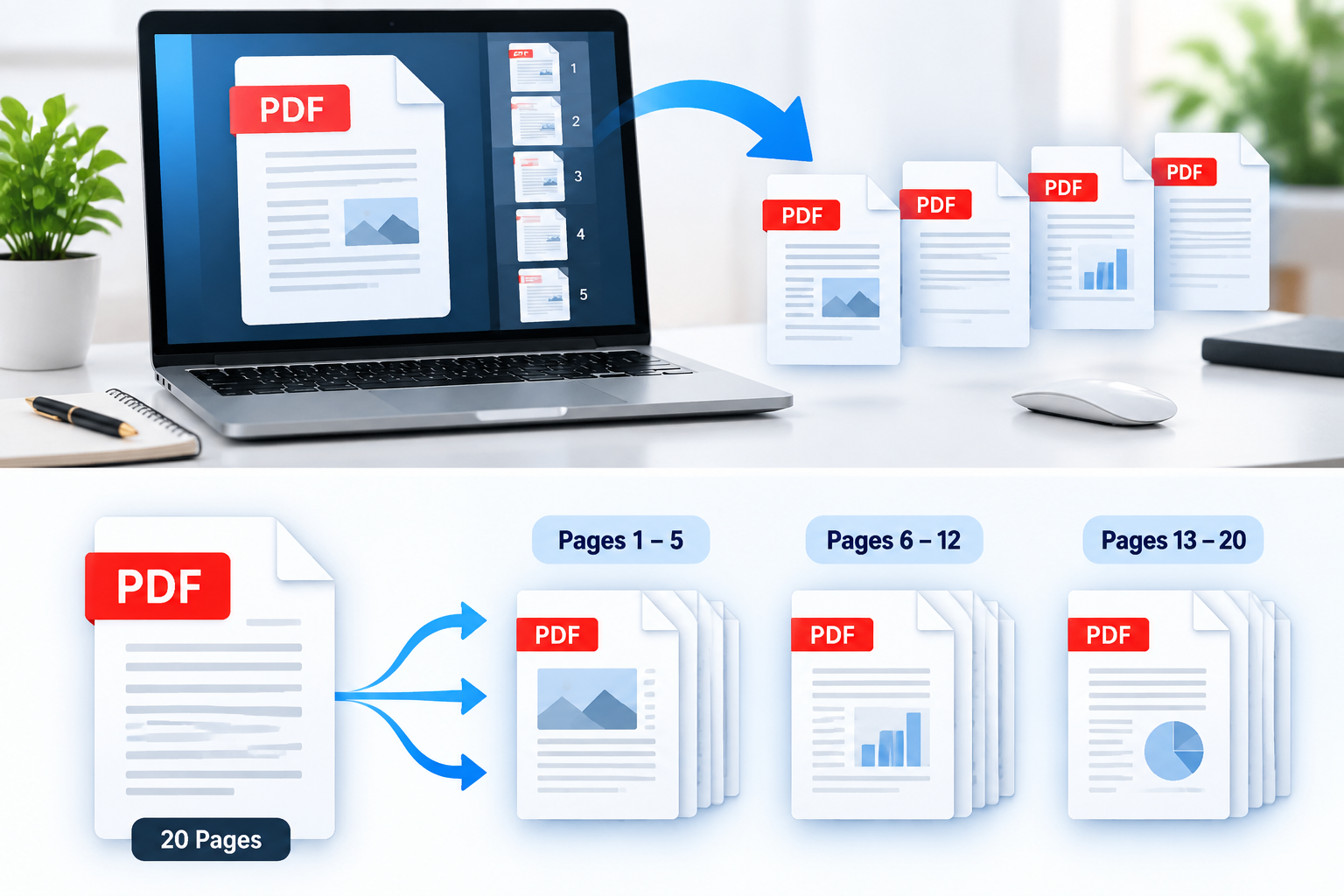
A split PDF online tool makes it easy to separate large documents into smaller, manageable files. Whether you need to extract selected pages from a report, divide a document into sections, or save individual pages, WeblixTools Split PDF helps you complete the task directly in your browser without installing software.
This guide explains how to split a PDF online, choose the right method, download the results, and avoid common mistakes.
How to Break a PDF into Multiple Files Online
The easiest way to separate a PDF document is to use a tool that lets you choose which pages belong in each output file. Follow these steps to get started.
Step 1: Open the PDF Splitter and Choose Your File
Visit the WeblixTools PDF splitter. Click the option to choose a PDF or drag and drop your document into the tool if your browser supports it.
Select the PDF you want to split from your computer or device. Once the document loads, its pages will appear in a preview so you can identify the sections you need.
Before continuing, check that you have opened the correct document and that its pages appear in the expected order.
Step 2: Choose How to Split the PDF
WeblixTools offers three ways to handle a PDF:
Every page: Creates a separate PDF for each page in the original document.
Custom ranges: Creates one PDF for each page range you enter.
Selected pages: Combines the pages you select into one new PDF.
Choose the method that matches your goal. For example, use Every page to separate a scanned document into individual pages, or Custom ranges to divide a long report into chapters.
Step 3: Split and Download the Result
After choosing your preferred method, click the split and download button. Wait for the process to finish, then save the resulting file or files.
If your selected method creates multiple PDFs, WeblixTools packages them into a ZIP archive. Extract the archive to access the individual documents. If you select specific pages to combine into one PDF, the tool produces a single PDF instead.
Open the downloaded files and check the page order and content before sharing them.
Which PDF Splitting Method Should You Choose?
The best PDF splitting method depends on how you want to use the resulting document.
What you want to do | Method to choose | Expected result |
|---|---|---|
Save every page separately | Every page | One PDF per original page |
Divide a report into sections | Custom ranges | One PDF for each specified range |
Keep only a few pages together | Selected pages | One PDF containing the chosen pages |
Divide a long document into two parts | Custom ranges | Two separate PDF files |
For example, a teacher who wants to distribute individual worksheets can split every page into a separate file. An office worker preparing a report for different departments can use custom ranges to create separate sections. Someone submitting only a few pages of a larger application can select those pages and combine them into one PDF.
Choosing the right method before splitting helps prevent unnecessary downloads and makes the resulting files easier to organize.
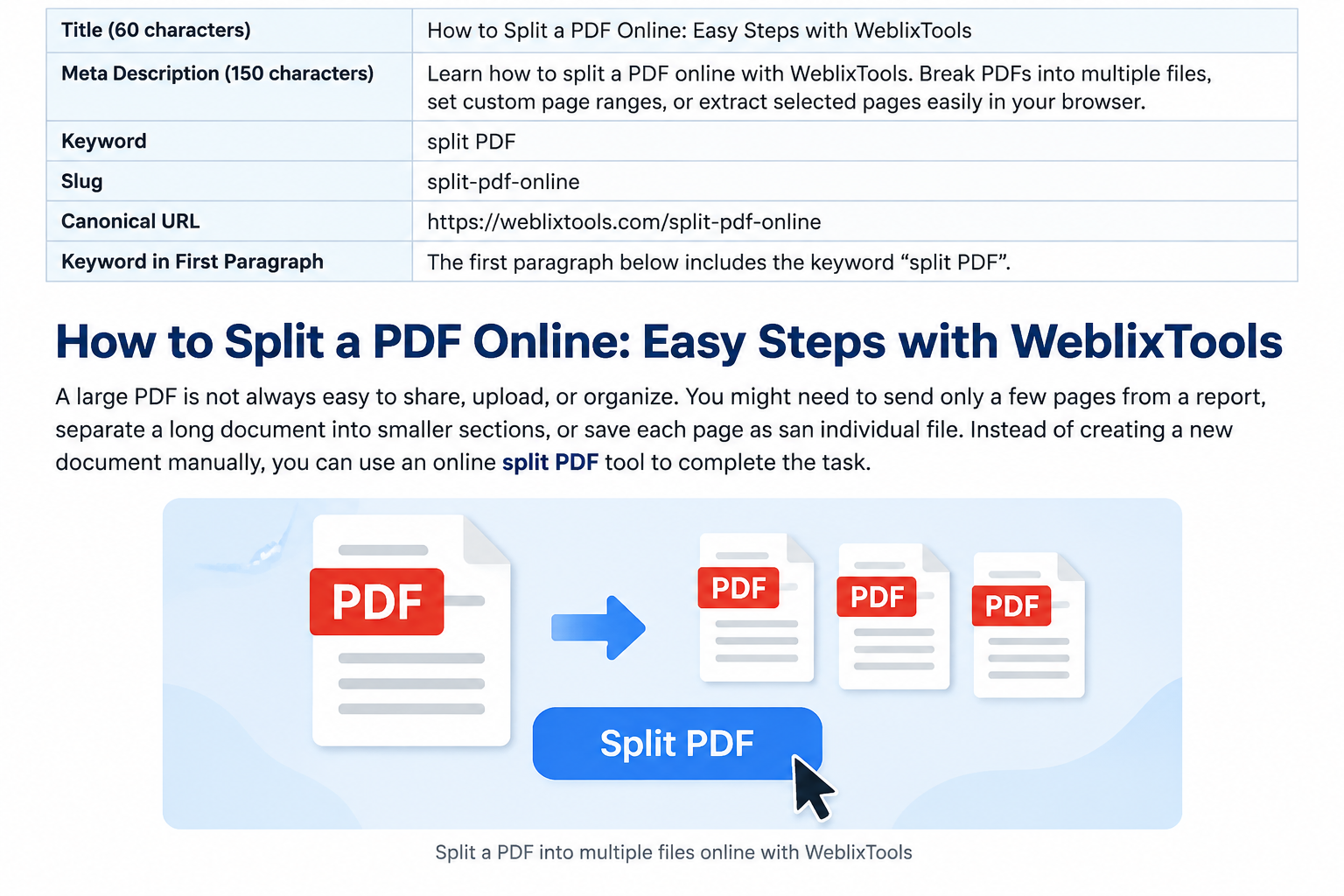
How to Separate a PDF into Multiple Files by Page Range
Custom page ranges are useful when you want to divide a document into specific sections without creating a separate PDF for every page.
Suppose you have a 20-page report and want to create three smaller files. You can enter the following ranges in the custom-range field:
1-5— includes pages 1 through 5.6-12— includes pages 6 through 12.13-20— includes pages 13 through 20.
Each range becomes a separate PDF. In this example, the first file contains five pages, the second contains seven, and the third contains eight.
The ranges cover the entire original document without overlapping or leaving gaps.
How to Extract Nonconsecutive Pages
Sometimes, the pages you need are not next to each other. For example, you may want pages 2, 5, and 9 from a report.
WeblixTools supports comma-separated ranges, so you can enter 1-3, 5, 8-10 to create separate PDFs containing pages 1–3, page 5, and pages 8–10. Each range becomes its own file. If you want several individual pages combined into one PDF instead, use the Selected pages option.
Always check the page numbers in the preview before downloading. The numbers refer to the PDF's actual page sequence, which may differ from printed page numbers shown on the document itself.
How to Split a PDF into Two Files
If you need to divide a PDF into two parts, the custom-range method is straightforward.
Imagine that your document contains 20 pages and you want to create two files with 10 pages each.
Enter these ranges:
1-10— the first half of the document.11-20— the second half of the document.
Run the split and download both files. Open each one to confirm that the first contains pages 1–10 and the second contains pages 11–20.
For longer documents, adjust the ranges according to the total number of pages. If the PDF has 31 pages, for example, you could divide it into pages 1–15 and 16–31.
Remember that splitting a PDF into two equal page counts does not necessarily produce files of equal size. Pages containing photographs, detailed graphics, or scanned images may require more storage than pages containing mostly text.
How to Split a PDF into Individual Pages
If you want every page of a PDF saved as its own document, choose the Every page option in the WeblixTools Split PDF tool.
This method is useful for separating scanned receipts, distributing worksheets, organizing individual application pages, or sharing one page without sending an entire report.
For example, if your PDF contains 12 pages, the result will be 12 separate single-page PDFs.
What Happens When You Download the Split PDFs?
When a split creates multiple files, WeblixTools combines them into a ZIP archive for download. A ZIP file is a container that holds the individual PDFs together; it is not itself a PDF document.
To access your files, locate the downloaded ZIP archive and extract it using your device's built-in archive utility or another compatible application. You can then open, rename, move, or share the individual PDFs.
If you expected a single PDF but received several files, check whether you selected Every page or Custom ranges. If you need multiple pages combined into one document, use Selected pages instead.
How to Extract Selected Pages from a PDF
Sometimes you do not need to divide an entire document. You only want to keep a few relevant pages.
For example, suppose you have a 30-page business report, but you need only pages 4, 7, and 12 for a presentation. Rather than creating several separate files, you can select those pages in the preview and combine them into one new PDF.
To do this:
Open the PDF in the WeblixTools PDF splitter.
Review the page thumbnails in the preview.
Click the pages you want to keep.
Confirm that the correct pages are selected.
Click the split and download button.
The resulting PDF contains the selected pages in the chosen sequence, making it easier to share the relevant information without sending the complete document.
Selected pages and custom ranges serve different purposes. Use Selected pages when you want specific pages together in one file. Use Custom ranges when you want multiple sections saved as separate files.
This distinction is especially helpful when preparing job applications, extracting sections from reports, or sharing only the relevant pages of a longer document.
Is It Safe to Split a PDF Online?
Privacy is an important consideration when working with documents that contain personal or business information. Before using any online PDF splitter, understand how the tool processes your files.
WeblixTools states that its PDF tools run in your browser and that the documents you open in the Split PDF tool are not uploaded to its servers. This browser-based approach allows you to split documents without sending their contents to a remote processing service. You can read the WeblixTools privacy policy for more information about how the website handles data.
For a safer document workflow:
Use the official website rather than an unfamiliar copy of a tool.
Check how a service processes files before opening confidential documents.
Keep downloaded files in an appropriate location, particularly when they contain personal or business information.
Verify the resulting documents before sharing them with other people.
No online workflow removes every possible privacy risk. Your device, browser, downloaded files, and the way you share documents still matter. For sensitive material, follow your organization's document-handling policies.
Does Splitting a PDF Reduce Its Quality?
Splitting a PDF does not necessarily reduce its quality. The result depends on how the tool handles the original pages.
WeblixTools states that its PDF splitter copies pages into the new files rather than converting them into images. As a result, text remains selectable and images are not re-compressed during the splitting process.
This is useful when working with reports, invoices, forms, or documents that need to remain readable and usable after separation.
After downloading a split PDF, check that:
Text is readable and selectable where expected.
Images and graphics appear correctly.
Pages are in the correct order.
Important links, forms, or other document features still work as needed.
If the original PDF contains unusual fonts, interactive forms, digital signatures, or other special features, test the resulting files before relying on them for an important submission. Preserving page content does not guarantee that every document-level feature will behave identically in every situation.
Common PDF Splitting Problems and How to Fix Them
Most PDF splitting problems can be investigated by checking the selected method, page ranges, and downloaded output.
Problem | What to do |
|---|---|
The wrong pages appear in the output | Recheck the page numbers and range boundaries before splitting again. |
Some expected files are missing | Review your custom ranges and confirm whether the selected method creates separate files or one combined PDF. |
The download arrives as a ZIP file | Extract the archive to access the individual PDF files. |
The download does not start | Check your browser's download permissions and try again. |
The PDF does not open | Download the file again and test it in a compatible PDF reader. |
The tool stops processing | Check the file, browser compatibility, available device memory, and the tool's current file-size limits. |
If a range-based split produces unexpected results, use a simple test with two or three pages first. Confirm that the output contains the intended content before processing a large document.
For documents that need further changes, WeblixTools also offers an Organize PDF tool for rearranging, rotating, and deleting pages. If your goal is to remove unwanted pages while retaining one document, the Remove PDF Pages tool may be a better fit.
When Should You Split a PDF?
Separating a PDF into smaller files can make document handling more convenient in several everyday situations.
Job applications: Extract the pages required for a particular application instead of sending an entire collection of documents.
Education: Divide a long set of notes or worksheets into smaller files that are easier to distribute to students.
Business reports: Separate a report into sections for different departments or colleagues.
Invoices and receipts: Extract relevant pages from a combined document for recordkeeping or sharing.
Scanned documents: Save individual pages separately when each page needs to be reviewed, distributed, or stored on its own.
Choose the method according to the result you need. Use Every page for individual files, Custom ranges for separate sections, and Selected pages when you want a smaller document containing only specific pages.
Frequently Asked Questions
How do I break a PDF into multiple files for free?
Open the WeblixTools Split PDF tool, choose your PDF, select Every page or Custom ranges, and start the split. Download the result and extract the ZIP archive if multiple files are packaged together.
How can I split a PDF into two equal parts?
Use Custom ranges. For a 20-page PDF, enter 1-10, 11-20 to create two files with 10 pages each. Adjust the ranges if your document has a different number of pages.
Can I extract only certain pages from a PDF?
Yes. Select the pages you need in the tool's preview and use the Selected pages option. The chosen pages are combined into one new PDF.
Why does my split PDF download as a ZIP file?
When a split produces several PDF files, WeblixTools packages them into a ZIP archive so you can download them together. Extract the archive to access each PDF separately.
Will splitting a PDF affect its quality?
WeblixTools copies the original page content rather than converting pages into images. Text remains selectable and images are not re-compressed during splitting. You should still check the resulting document if it contains important interactive features.
Can I split a PDF on my phone?
You can access WeblixTools through a modern mobile browser. Choose the PDF from your device, select the splitting method, and download the result. The exact experience may vary depending on your browser, device memory, and file size.
Split Your PDF with WeblixTools
You do not need to separate pages manually or recreate a document just to share a smaller section. With the right method, you can split a PDF into individual pages, divide it by page ranges, or extract selected pages into one new file.
Visit the WeblixTools Split PDF tool, choose your preferred method, check the page ranges, and download the finished document. Before sharing it, open the resulting file or files to make sure they contain the pages you intended to keep.