
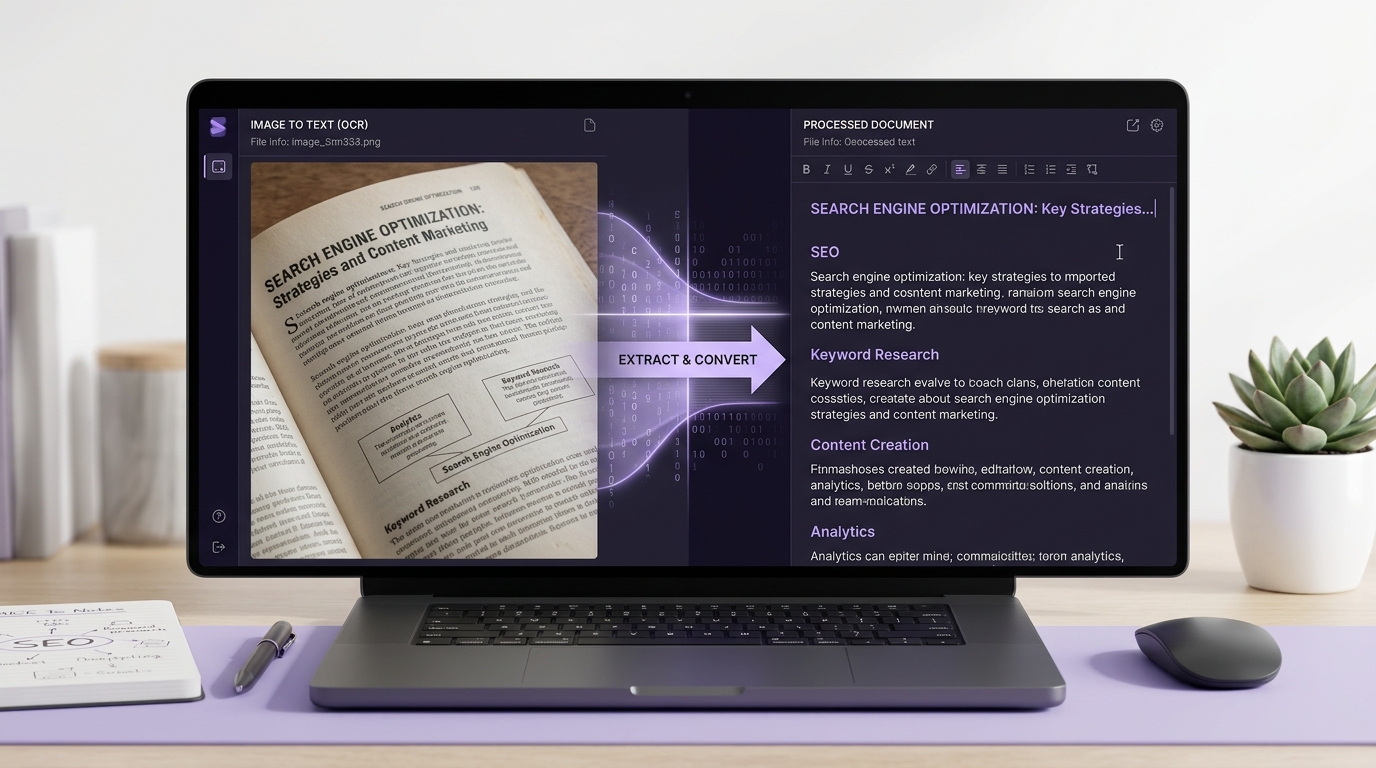
Have you ever needed to copy a paragraph from a screenshot, a photograph of a book, or a printed document but found that you could not select the words? You do not need to type everything manually. You can extract text from picture files using optical character recognition (OCR), a technology that identifies text inside images and converts it into editable content.
With WeblixTools Image to Text, you can select an image, choose the language, and extract the words directly in your browser. The tool supports common tasks such as copying text from screenshots, receipts, printed pages, and photographs.
This guide explains how to convert images into text, which image formats work best, how to fix recognition errors, and what to consider when handling private documents. You will also learn when your phone or computer can do the job without an additional application.
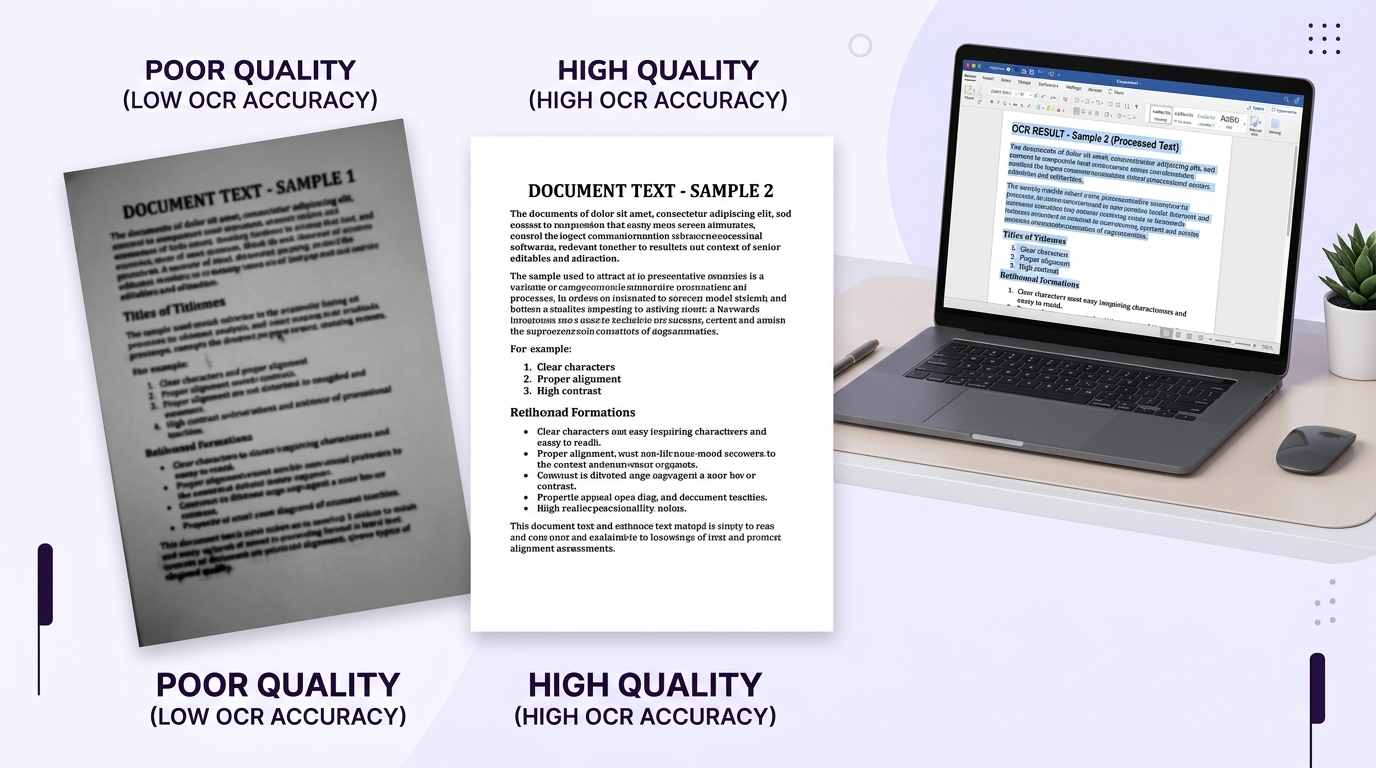
How to Extract Text from a Picture in 3 Steps
The easiest way to extract text from a picture is to use an OCR tool. Open WeblixTools Image to Text, add your image, select the appropriate language, and run text extraction. You can then review the result, copy the recognized words, or download them as a text file.
Step 1: Open the Image to Text Tool
Visit the WeblixTools Image to Text tool. It works in your browser, so you do not need to install desktop software to get started.
Prepare the image you want to process. It could be a screenshot, a photograph of printed notes, a receipt, or a business card. Use the clearest original version available.
Step 2: Add Your Image and Choose the Language
Click the image selection area, drag and drop your file, or paste an image using Ctrl+V on a supported desktop browser.
Next, select the language or languages that appear in the image. WeblixTools currently supports 14 languages, including English, Urdu, Arabic, Hindi, Bengali, Chinese (Simplified), French, German, Spanish, Portuguese, Italian, Russian, Turkish, and Indonesian. You can select up to three languages for one image.
Choosing the correct language helps the OCR engine distinguish similar-looking characters.
Step 3: Extract, Review, and Copy the Text
Click Extract Text to start recognition. The tool processes the image in your browser and displays the recognized content.
Review the output before using it. Check names, dates, numbers, punctuation, and any words highlighted as less certain. You can copy the text or download it as a TXT file.
Ready to start? Use the free WeblixTools Image to Text tool to pull text from image files without manually typing every word.
Before You Start: A 30-Second Image Preparation Checklist
A few simple checks can improve your results:
Crop the image: Keep the relevant text and remove unnecessary backgrounds.
Straighten the page: Tilted or skewed text can be harder to recognize.
Check the lighting: Avoid shadows, glare, and dark areas across the words.
Improve contrast: Dark text on a light background is usually easier to read.
Use the original image: Avoid small thumbnails or heavily compressed copies.
If the image is too large or contains unnecessary areas, you can use the Image Resizer to adjust its dimensions. However, enlarging a blurry image does not restore missing detail.
What Is OCR and How Does It Work?
OCR stands for optical character recognition. It is a technology that identifies letters, numbers, and other characters within an image and converts them into machine-readable text.
Think of a photograph of a printed page. To you, the words are easy to read, but your computer initially treats the photograph as a collection of pixels. OCR analyzes those visual patterns, identifies likely characters, and produces text that you can copy, search, and edit.
A typical OCR process involves three stages:
Text detection: The software identifies areas that appear to contain words.
Character recognition: It analyzes the shapes and patterns to identify letters and numbers.
Text output: It arranges recognized characters into lines and words that can be copied or saved.
WeblixTools uses the open-source Tesseract OCR engine in your browser to perform this task. <Cite refs={["turn796194search4","turn796194search5"]}/>
The result is editable text rather than a picture of words. However, OCR does not guarantee perfect recognition. Image quality, font style, language selection, and handwriting can all affect the outcome.
The terms “OCR,” “text recognition,” and “image to text” are closely related. OCR is the underlying technology, while image-to-text conversion describes the task a user wants to complete.
Other Ways to Copy Text from an Image
An online OCR tool is not your only option. Your phone or computer may already have a feature that recognizes text. The best choice depends on the device you use, the number of images you need to process, and your privacy requirements.
Method | Best for | Main limitation |
|---|---|---|
WeblixTools Image to Text | Browser-based extraction from image files | Requires a compatible browser and supported image |
Apple Live Text | Selecting text in supported photos and images | Requires a compatible Apple device and supported language |
Google Lens | Copying or translating text from photos | Availability and steps vary by device |
Windows Snipping Tool | Extracting text from screen captures | Depends on the Windows version and available features |
On Your Phone
If you use an iPhone or iPad that supports Live Text, open a photo containing words, select the text, and tap Copy. You can paste it into Notes, an email, or a document. Apple also supports text recognition through its camera and other compatible experiences. <Cite refs={["turn796194search0","turn796194search6"]}/>
On supported Android devices, open a photo in Google Photos and use Google Lens to identify the text. Select the relevant words and use the available copy option. Google Lens can also translate recognized text. <Cite refs={["turn796194search12","turn796194search13"]}/>
These built-in options are useful when you only need to copy a few lines. If you want to process image files in a browser or save the complete result as text, an OCR tool may be more convenient.
On a Computer
Windows users can use the Text Actions feature in Snipping Tool where supported. Capture the relevant screen area, open Text Actions, and select the text you want to copy or use the option to copy all text. <Cite refs={["turn796194search2","turn796194search7"]}/>
For other operating systems, available text-recognition features depend on the device, software version, and application. If a built-in option does not meet your needs, you can use an online tool instead.
Convert PNG, JPG, JPEG, and Screenshots to Text
The image format you choose can affect the quality of the extracted text. However, the clarity of the image matters more than the file extension alone.
PNG to Text
PNG uses lossless compression, which preserves the image data during compression. It is often a good choice for screenshots, diagrams, and graphics containing small text.
When you need PNG to text conversion, start with the original PNG rather than taking another screenshot of it. Repeated resizing or compression can make characters harder to distinguish.
JPG and JPEG to Text
JPG and JPEG refer to the same widely used image format. Both commonly use lossy compression, which can introduce visual artifacts around letters, especially when an image is saved repeatedly at low quality.
A JPG to text converter can still recognize clear photographs and scanned pages. For better results, use the highest-quality original file available and make sure small characters remain readable.
If you need a simple text file, the extracted content can be saved as .txt. This format stores plain text without preserving the original page design.
Screenshot to Text
Screenshots are useful when you want to copy words from a website, presentation, online notice, or message that does not allow text selection.
To get better results, capture the screen at its original resolution, crop away irrelevant content, and avoid using a thumbnail or a screenshot that has been scaled down several times.
WebP and HEIC images may also be common in online content and phone photographs. Check whether your chosen tool accepts your specific format before processing it. If not, use the Image Converter to explore the available conversion options.
Why Is My Extracted Text Wrong? Practical Fixes
If the extracted text contains strange symbols, missing words, or incorrect characters, the problem may be the image rather than the OCR tool.
Use this table to identify common issues and their possible solutions.
Problem | Possible cause | What to do |
|---|---|---|
Letters appear as random symbols | Low resolution or poor contrast | Use a sharper image with clearer text |
Words are missing | Cropped edges or text outside the selected area | Include the complete text region |
Words run together | Small spacing or complex layout | Crop the section and process it again |
Characters look incorrect | Wrong language selected | Select the language used in the image |
Some lines are unreadable | Blur, shadows, or glare | Use a clearer image with even lighting |
Columns appear mixed | Complex page layout | Process each column separately |
Can OCR Read Handwriting?
OCR generally works best with clear printed text. Neat, block-style handwriting may be recognized, but cursive handwriting can produce unreliable results.
WeblixTools notes that its OCR engine is designed primarily for printed text, so you should not expect consistent results from connected handwriting. <Cite refs={["turn796194search4"]}/>
If you need to extract text from handwritten notes, use a sharp image, good lighting, and a simple background. Always compare the output with the original, particularly when the text contains names, figures, or important instructions.
What About Line Breaks and Formatting?
OCR may not preserve the original layout perfectly. Tables, multiple columns, bullet points, and unusual fonts can create formatting problems even when individual words are recognized correctly.
For important documents, compare the output with the image and correct the structure manually. If you need to retain the exact layout, an editable text file may not be sufficient; you may need a document conversion or editing workflow.
Clean Up and Use Your Extracted Text
After you extract text from a picture, take a moment to prepare it for its intended use.
Start by checking spelling, punctuation, names, dates, and numbers. Then remove unwanted line breaks, correct capitalization, and organize paragraphs or lists. If you copied a long document, a word counter can help you check its length.
WeblixTools also offers related utilities that can simplify these tasks:
Remove Line Breaks to join text that has been split across unnecessary lines.
Find and Replace to correct repeated OCR errors.
Case Converter to adjust capitalization.
Word Counter to count the extracted words.
These tools can help prepare recognized text for assignments, reports, content drafts, and other everyday tasks. Still, review the original image before relying on the final text.
Is It Safe to Extract Text from an Image Online?
Online OCR tools do not all handle files in the same way. Some send images to remote servers for processing, while others run the recognition process directly in your browser.
WeblixTools states in its privacy policy that its Image to Text tool processes images locally in your browser rather than uploading them to its servers. Its OCR language files are downloaded to your browser and cached for later use. <Cite refs={["turn796194search1","turn796194search4"]}/>
This browser-based approach can be useful when working with screenshots or documents you prefer to keep on your device. However, no tool should be treated as a reason to ignore basic data security.
Before using any online service, consider these precautions:
Read its privacy policy and understand where processing happens.
Check whether files are stored, transmitted, or shared with third parties.
Avoid uploading sensitive documents to unfamiliar services.
Follow your employer's or client's rules for confidential information.
Verify the privacy practices of any additional feature you use, especially AI-powered translation or summarization.
For WeblixTools Image to Text, the stated local-processing approach means the selected image is not uploaded to its servers during OCR. Other features may have different data-handling arrangements, so review the relevant policy before using them.
Frequently Asked Questions
Can I extract text from a picture for free?
Yes. You can use the free WeblixTools Image to Text tool to recognize text from supported images in your browser. Add the image, choose the language, and click Extract Text.
Can I extract text in other languages?
Yes, if the OCR tool supports the language in your image. WeblixTools supports 14 languages, including Urdu, Arabic, Hindi, and Chinese (Simplified), and allows you to select up to three languages together. If you want to translate the recognized content, use the Translate Image tool. Translation is a separate task from text extraction.
Can I convert a scanned PDF to editable text?
Yes. A scanned PDF may contain page images rather than selectable text. Use WeblixTools OCR PDF to explore the PDF OCR workflow. Another option is to convert PDF pages into images first, then process those images with an OCR tool.
How accurate is OCR?
Accuracy depends on the image, font, language, and layout. Sharp printed text with good contrast generally produces better results than blurry images or handwriting. No single accuracy percentage applies to every document, so review the output before using it.
Can OCR preserve tables and multiple columns?
Not always. OCR can recognize text without perfectly reproducing the original structure. For complicated tables or multi-column pages, process separate sections individually and rebuild the table when necessary.
Can I use image-to-text tools on my phone?
Yes, provided the tool works with your mobile browser. You can also use built-in text recognition, such as Apple Live Text on supported devices or Google Lens on supported Android devices.
Can I extract text from several images at once?
WeblixTools currently supports adding up to 20 images in one batch. You can collect the recognized text from the processed images and copy the result. <Cite refs={["turn796194search4"]}/>
Start Extracting Text from Pictures
You no longer need to retype every word from a screenshot, photograph, receipt, or printed page. OCR can turn visible text into editable content in a few straightforward steps.
For the best results, start with a clear image, choose the correct language, and check the recognized text before using it. If you want a browser-based option that processes images on your device, try WeblixTools Image to Text and simplify your next text extraction task.