
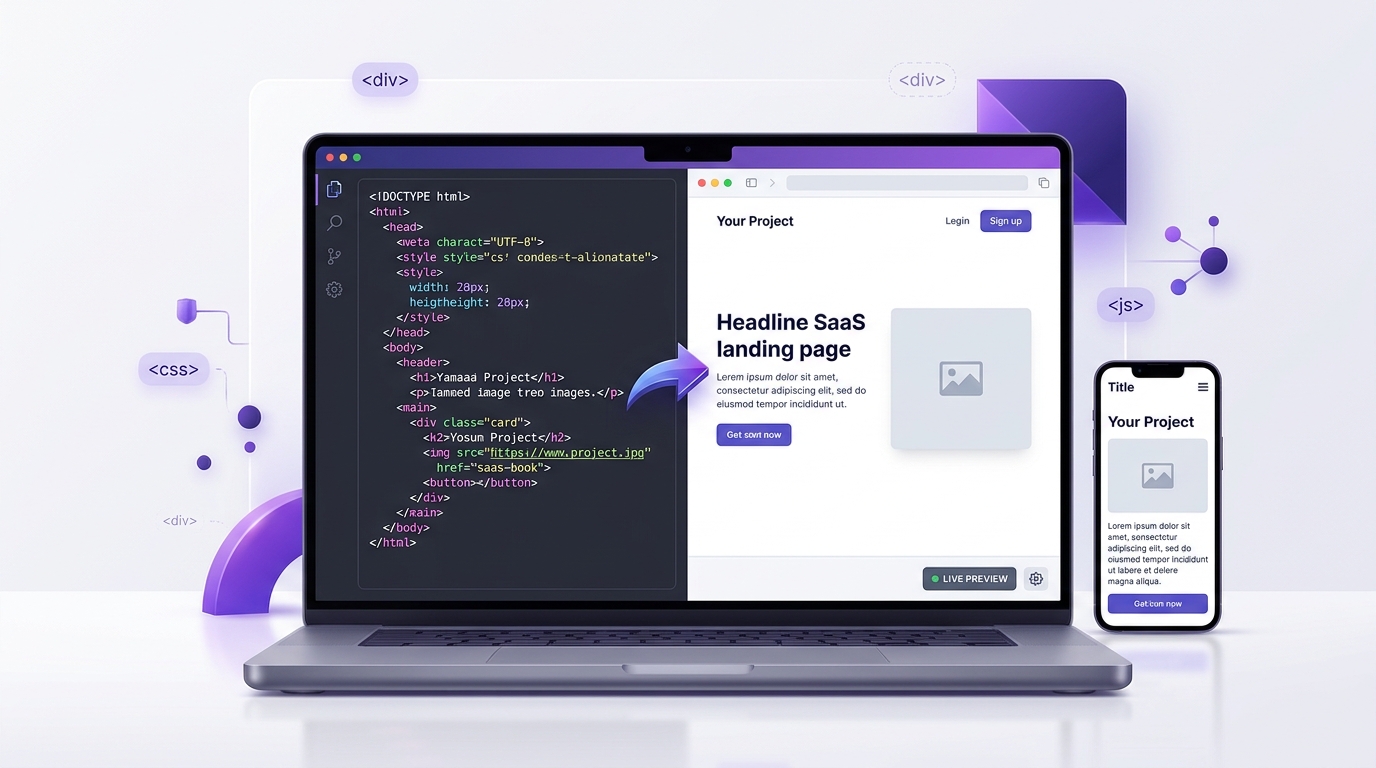
An online HTML viewer lets you turn HTML code into a visual web page directly in your browser. Instead of creating a project or installing software, you can paste a snippet, preview its layout, and make quick changes. This is useful when you receive code from a content management system (CMS), an email template, a tutorial, or an AI tool and want to see what it actually looks like.
This guide explains what an HTML viewer does, how to view HTML online in a few steps, and why a preview may look different from the original page. You will also learn how to check layouts at different widths and how to handle unfamiliar code more carefully. For a quick test, open the WeblixTools HTML Viewer in another tab.
What Is an HTML Viewer?
An HTML viewer is a tool that reads HTML markup and displays the page that markup describes. HTML provides the structure of a page—such as headings, paragraphs, links, images, and buttons—while CSS controls much of its appearance. Some viewers show the code and the rendered result side by side, so you can compare what you wrote with what appears on screen.
Students can use a viewer to learn how tags work. Bloggers and marketers can check an embed before adding it to a CMS. Developers and QA teams can reproduce a small layout issue, while email and template builders can get an initial look at a design. You generally do not need to create a complete website just to test a short HTML snippet.
Keep one distinction in mind: an HTML viewer shows a rendering; it does not automatically prove that the code is valid, accessible, secure, or identical across every browser.
HTML viewer vs. view source vs. HTML editor
Tool | What it does | Best use |
|---|---|---|
HTML viewer | Turns supplied markup into a visual preview. | Quickly checking how code renders. |
Browser “View Source” | Shows the HTML source delivered for a web page. | Inspecting a website’s markup; it may not show changes made later by JavaScript. |
HTML editor | Helps you write, organize, and manage code or project files. | Building and maintaining a website. |
An online source viewer can mean different things depending on the website. If you want to inspect a live site, use your browser’s “View Source” option or Developer Tools. If you already have code and want to see its visual result, use a viewer.
How to View HTML Code Online in 4 Steps
Open a viewer. Visit the WeblixTools HTML Viewer or another browser-based viewer.
Add your code. Paste a complete HTML document or a small snippet into the code area. Depending on the tool, you may also be able to open an HTML file or load a page by URL.
Check the preview. Review the rendered page. Switch between code and preview views, if available, and change the preview width to see how the layout responds.
Make a change and test again. Edit a heading, CSS value, or link and check the result. Copy or download the code if the viewer provides those options.
Try this short example. It includes a heading, a paragraph, and a styled link that looks like a button:
<!DOCTYPE html>
<html lang="en">
<head>
  <meta charset="UTF-8">
  <meta name="viewport" content="width=device-width, initial-scale=1.0">
  <title>My HTML Test</title>
  <style>
    body { font-family: Arial, sans-serif; padding: 24px; }
    .button { display: inline-block; padding: 10px 16px;
      background: #5b43c4; color: white; text-decoration: none;
      border-radius: 6px; }
  </style>
</head>
<body>
  <h1>My first preview</h1>
  <p>This is a simple HTML test.</p>
  <a class="button" href="https://example.com">Visit example</a>
</body>
</html>
Paste the code into a viewer and check whether the heading, paragraph, and link appear as expected. This is a visual test, not a complete validation or security check.
Ready to test your own code? Open the HTML Viewer and paste a snippet to see the result.
Paste HTML code to view it
For a quick experiment, paste the smallest piece of code that reproduces the layout you want to inspect. A full document usually starts with <!DOCTYPE html> and includes <html>, <head>, and <body>. A snippet—such as a card, table, or button—may work inside a viewer, but it can look different if the original website supplied CSS or scripts that are missing from the snippet.
Load a page by URL or open an .html file
Paste code when you only need to test a small example. Open a local .html file when you already have a saved document. Remember that related CSS, images, and fonts may not be loaded automatically when you open only the HTML file. Loading a page by URL can preserve its original address context, which often helps relative links resolve; how this works depends on the viewer and its fetching rules.
Check desktop, tablet, and phone widths
Use width presets, if available, to see whether content fits a wide screen or a narrow viewport. This is a responsive-width check—not a full simulation of a real phone, its browser, touch behavior, or operating system. The viewport meta tag is important for mobile layouts; see MDN’s viewport meta tag guide for details.
What an HTML Preview Can and Can't Show
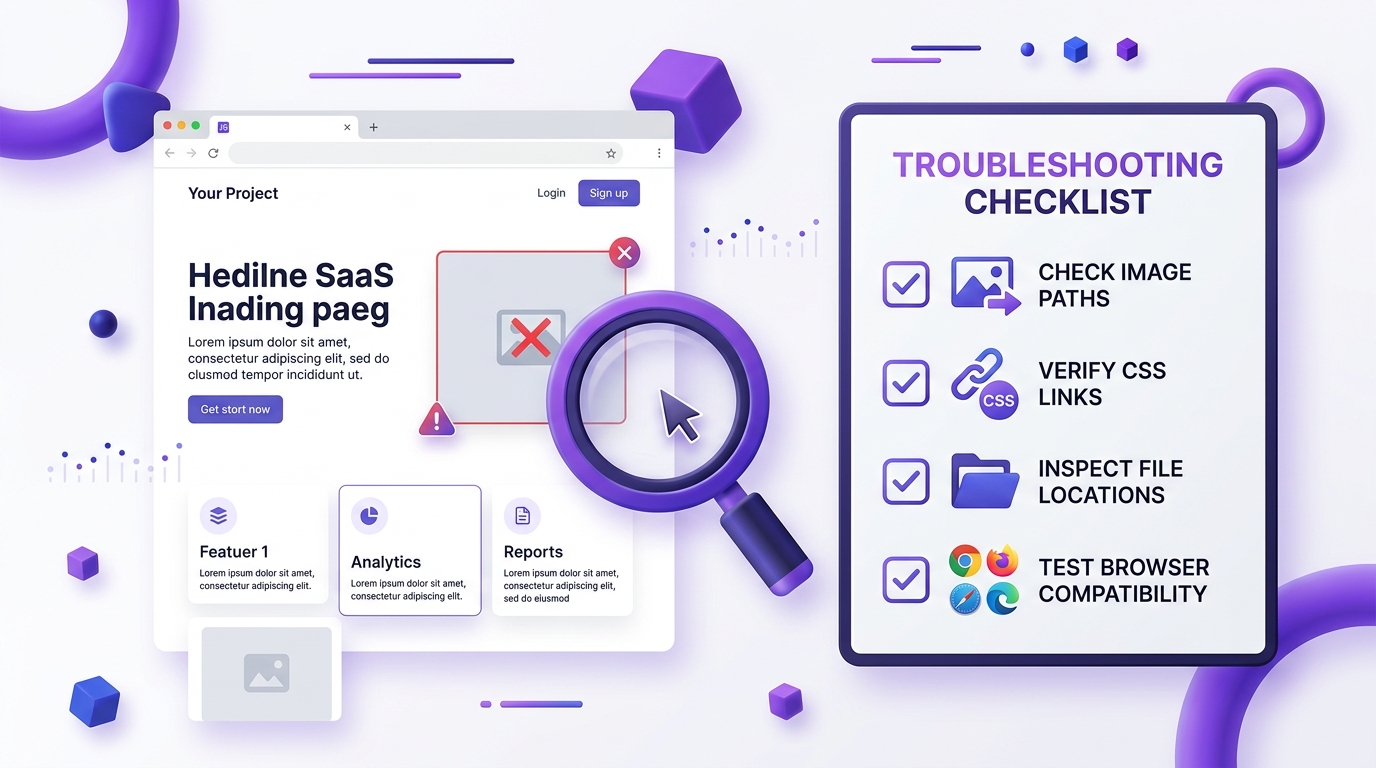
A preview is useful, but it may not reproduce the original environment. The cause is often a missing resource, a blocked feature, or a difference between the test page and the live website. Use the table below to narrow down the problem.
What you see | Possible cause | What to try |
|---|---|---|
Images or CSS are missing. | The snippet uses relative paths that no longer point to the original files. | Check the file paths or use the correct full HTTPS URL for a public resource. |
A button or menu does nothing. | The action depends on JavaScript, a form handler, or a site backend that is not available in the preview. | Check whether scripts are disabled and test the feature in a controlled local project. |
Fonts or spacing look different. | A font, stylesheet, or browser default is missing or differs from the live site. | Confirm that the required CSS and font resources load correctly. |
An email template looks wrong. | Email apps support different subsets of HTML and CSS. | Send a test email to the email clients your audience uses. |
Characters appear as symbols. | The document may have a character-encoding mismatch. | Check that the document is saved as UTF-8 and includes a suitable charset declaration. |
Why scripts, forms, and pop-ups may be switched off
Some viewers disable JavaScript and other interactive behavior to reduce the risk of running untrusted code. In that case, HTML and CSS may display normally while a menu, calculator, form submission, or pop-up remains inactive. Other tools may offer settings that allow more behavior, so check the specific viewer’s documentation before relying on its preview.
Do not assume that a working preview means code is safe. A locked-down frame can limit certain actions, but it cannot replace careful review of unfamiliar code and links.
Why images and styles go missing
A relative path such as images/photo.jpg depends on the page’s location and the surrounding file structure. An absolute URL such as https://example.com/images/photo.jpg identifies a specific web address. If you paste the HTML into a different environment, a relative path may point somewhere else—or nowhere at all. Also check whether the resource is private, blocked, or unavailable over HTTPS.
When to Use an Online HTML Viewer
Check CMS snippets, website widgets, and embed code
Before adding a pricing card, newsletter embed, or other widget to a website, preview the HTML to check spacing, headings, and links. For example, if a widget is wider than the content area, a quick preview can help you spot the issue before publishing. A viewer cannot confirm that the widget will work with every plugin, theme, or security policy, so test it on a staging page when possible.
Preview email templates—with one important caveat
An HTML viewer can help you inspect the basic structure of an email, including headings, buttons, and spacing. However, Gmail, Outlook, Apple Mail, and other clients do not all support the same CSS features. Use the viewer for an initial check, then send a test message and review it in the email clients that matter to your readers.
Use it as a quick HTML test bed
If a layout breaks, isolate the relevant section and test it in a small example. You can compare two CSS values, check a flexbox layout, or inspect markup copied from a page. When you are investigating a live website’s technology, a separate Website Technology Checker may be more relevant; for checking selectors in structured HTML, try the XPath Tester.
Learn how HTML tags and CSS behave
Beginners can change one thing at a time and watch the result. Try replacing an <h1> with an <h2>, changing a text color, or adding padding to a paragraph. This simple loop—edit, preview, compare—makes it easier to connect the code with the visible page.
Is It Safe to Paste HTML Into an Online Viewer?
Safety depends on the viewer, the code, and the information you share. A sandboxed iframe is a browser feature that can restrict what embedded content is allowed to do. Depending on its configuration, it can limit scripts, form submissions, pop-ups, and access to the surrounding page. Read MDN’s iframe sandbox documentation to understand these controls.
These protections are not a reason to trust every snippet automatically. Unknown code can still display deceptive content or link to an untrustworthy website. Be cautious with tools that fetch external URLs, because that process may involve sending a request to another server.
Never paste passwords, API keys, private customer data, or confidential business information into an online tool.
Review unfamiliar HTML and links before interacting with a preview.
Check whether the tool runs scripts, fetches URLs, or stores submitted content.
Use a local development environment for sensitive projects or code that needs full testing.
For WeblixTools-specific behavior, consult the current HTML Viewer page and its privacy information. Do not treat general browser safeguards as a guarantee that every online service handles data the same way.
HTML Viewer vs. HTML Editor vs. Local Setup
Option | Speed for a quick check | Project management | Best for |
|---|---|---|---|
Online HTML viewer | Usually quick; no full project setup for a snippet. | Limited compared with a full editor. | Previewing small pieces of markup. |
HTML editor | Quick once configured. | Can organize files, code, and extensions. | Writing and maintaining web pages. |
Local development setup | Requires initial setup. | Supports a fuller project and testing workflow. | Building, debugging, and testing a real website. |
Choose a viewer when you need a fast visual check. Choose an editor or local setup when you need version control, multiple files, debugging, or dependable testing before release. Start with the WeblixTools online HTML viewer for a quick preview, then move to a full development workflow as the project grows.
Mistakes a Preview Helps You Spot
Unclosed or incorrectly nested tags: content may appear in the wrong place. Close elements correctly and nest them in a valid order.
Missing DOCTYPE: a browser may use quirks mode, which can change layout behavior. Start a full document with
<!DOCTYPE html>.Missing viewport meta tag: a page may appear too wide on a phone. Add
<meta name="viewport" content="width=device-width, initial-scale=1.0">inside the head.Incorrect character encoding: letters or punctuation may look garbled. Save the file as UTF-8 and declare
<meta charset="UTF-8">.Incorrect quotation marks in attributes: a link or image may not behave as expected. Use matching straight quotes, such as
href="https://example.com".
A preview can reveal visible problems, but it is not a substitute for checking standards compliance. For a more formal HTML check, use the W3C Nu HTML Checker. Fixing validation errors does not automatically guarantee accessibility, security, or a perfect design, but it is a useful step.
Frequently Asked Questions
What is the difference between an HTML viewer and an HTML editor?
A viewer focuses on displaying how HTML renders. An editor is designed to write and manage code and often supports larger projects, multiple files, and development features.
How do I view the HTML source of any website?
Use your browser’s “View Source” option or Developer Tools to inspect a page. You can also use a viewer’s URL-loading feature if it supports the site, but fetching restrictions may apply.
Can I open an .html file from my computer?
Many viewers support opening a local HTML file. Related CSS, images, and other assets may need to be opened or linked separately, depending on the tool.
Does an HTML viewer check whether my code is valid?
Not necessarily. Rendering and validation are different tasks. Use an HTML validator, such as the W3C Nu HTML Checker, to check markup against HTML rules.
Can I use an HTML viewer on my phone?
A browser-based viewer may work on a phone, although editing large blocks of code is easier on a larger screen and big files can take longer to handle.
Is compiled HTML the same as a normal HTML page?
Not usually. “Compiled HTML” often refers to Microsoft Compiled HTML Help files, which use the .chm format; that is different from ordinary HTML source code.
Try It Now: Preview Your HTML
An online HTML viewer is a practical way to inspect markup, test small layout changes, and catch obvious display issues before publishing. For best results, check the code, confirm that external resources load, test narrow screen widths, and validate the markup separately when needed.
Preview your next HTML snippet.
Open the HTML Viewer & Previewer, paste your code, and inspect the rendered result. You can also explore the XPath Tester or Website Technology Checker for related tasks.